Search This Blog

Monday, July 6, 2015

Add-On for Docs for Over 1,000 Fonts!

Extensis is a free add-on for Docs that gives you 1,200 fonts to use in Docs. You access the fonts in the panel that opens within Docs. You can preview fonts alphabetically, by style or even by trend.

To access, go to "Add Ons" then "Get Add Ons" and search for "font."


Friday, July 3, 2015

Live a Balanced Life

From the very talented Sylvia Duckworth!  I love #11.


Simplify!

I just attended a great two-day conference on Google for Education. We learned a lot of new "tools" that make learning interactive, engaging and fun. But something else that I learned is that these are all tools. Tools for teachers and students to keep in their toolbox. But sometimes all these tools can become overwhelming, so why not keep it simple?  For instance, instead of using Thinglink to make your images interactive, use Google Draw!

Google Draw is my new favorite Google app.  It's Google's most overlooked feature and the more I learn about it, the more I find I can do with it. Posters, timelines, brochures, newletters, mindmaps, and yes--interactive images!

Monday, June 29, 2015

Some Tricks With Google Translate

From Drive Bunny:

Some Tricks With Google Translate

Google’s Translate App is a handy tool and is constantly being improved in both features and accuracy. There are one or two wrinkles to its use, however, that may not be immediately obvious from the interface.  

Wednesday, June 3, 2015

Placing Images in a Spreadsheet

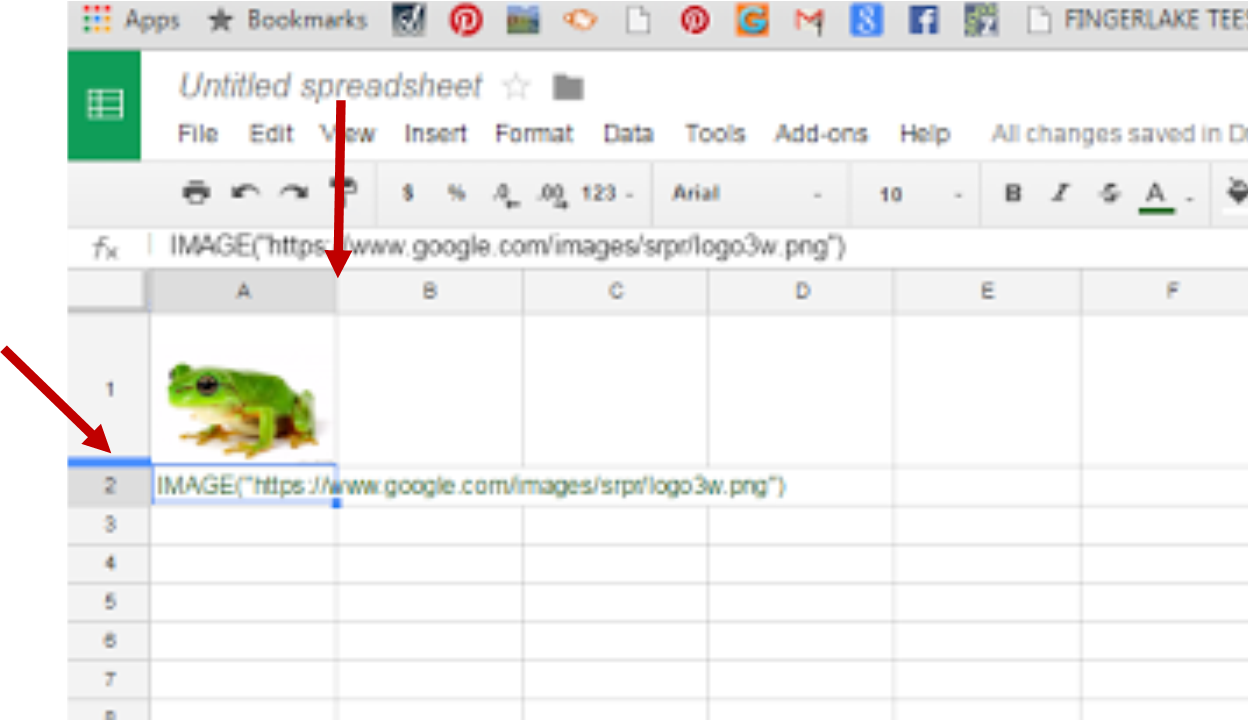
Use a function to put an image in a cell in a spreadsheet.  Here’s how:

  1. First, find the image URL. (http://images.wisegeek.com/green-frog.jpg)
  2. Open your spreadsheet and click on the cell you want the image in.
  3. In that cell, type: =IMAGE("http://images.wisegeek.com/green-frog.jpg")
  4. Press [ENTER]
  5. To resize image, adjust your cursor so it rests on dividing line between row or column you want to change and the next row/column. Your cursor will turn into a double-sided arrow. Click/hold/drag to size.

Picture1.png

Tuesday, June 2, 2015

EdTech Summit in Buffalo, NY

I'll be presenting at the Summit in Clarence!  I'll be leading "Using Google to "Draw" Students' Interest".

Here's the link to the conference. If you've never been to an EdTech Summit, please consider going--you won't be disappointed!

https://ny.gafesummit.com/buffalo/

Monday, June 1, 2015

Coolest Google Sheets Function!!!

Have you ever had a list of names in a spreadsheet with both first and last, but then realize you need them separate? This function will take care of it for you!

The name of the function is “split.” Put your cursor in cell B1 and type
=SPLIT(A1,” “)

Watch this quick video for a complete description.  https://youtu.be/GE5rpwvFBCA